

Client locations#
Introduction#
SFTPPlus supports a variety of client-side protocols to facilitate file transfers and interactions with remote systems.
The client-side protocols are represented as locations, which define the connection details and configuration options for each protocol.
Locations are used to connect to various types of local or remote systems, including local file systems, SFTP servers, FTP servers, HTTP servers, and cloud storage services like Amazon S3 or Microsoft Azure Blob Storage.
Locations are auto-started when a transfer or another component needs them and the location is not started and connected.
They are also fault-tolerant, allowing retries for interrupted connections.
Transfers using a failed location will also fail and will not trigger a new connection attempt for the location. In this type of scenario, the failed location must be manually started first, after resolving the initial error.
SFTPPlus uses locations and transfers to define how to connect to remote systems and manage file transfers. Locations specify the connection details for remote servers, while transfers define the rules for file transfers between these locations.
The sub-sections below will guide you through the configuration of each client-side protocol, including examples and best practices.
See the available configuration options for the SFTP location.
Learn how to configure FTP for straightforward, legacy file transfers where encryption is not required.
This section provides details on how to configure the connection to an Explicit FTPS server.
This section provides details on how to configure the connection to an Implicit FTPS server.
This section provides details on how to configure the HTTP(S) pull location for downloading files from HTTP or HTTPS servers.
Learn how to configure the SharePoint Online client protocols for accessing SharePoint sites hosted in the Azure Cloud. For on-premise SharePoint sites, use the webdav location.
Learn how to configure the AS2 client to send files to your AS2 trading partners.
This section provides details on how to configure the Azure Blob location.
This section provides details on how to configure the Azure File location.
Learn how to configure an SMB location to provide access to an SMB server over TCP.
Learn how to configure an Oracle Database location to send and receive files using SQL statements, with data stored in the database.
This section describes how to configure SFTPPlus to send and receive files via IBM MQ queues.
This section provides details on how to configure the Exchange Online location for downloading attached files in an Exchange Online mailbox.
Learn how to configure the WebDAV and on-premise SharePoint client protocols for accessing remote files and folders.
This section provides details on how to send files as email attachments using the SMTP protocol.
See the available configuration options for the Local Filesystem location.
Adding a new location via Web Manager#
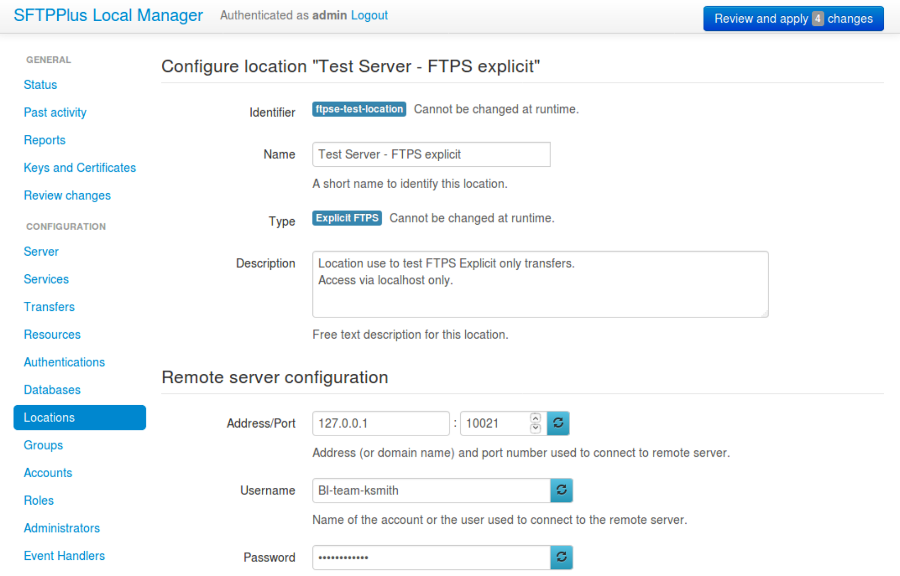
A new location can be added or changed via Web Manager below. Options will differ depending on which location type is used.
See below for an example of an initial configuration with the FTPES location.
Adding a new location via text configuration#
Adding a new location configuration is done by creating a new section
inside the configuration file.
The name of the section should be prefixed with locations/ and followed by
the location's UUID.
The location's UUID can be any unique string used to identify the location. Once defined, the UUID should not be changed.
For more information, please see the dedicated UUID documentation.
For example, to add a new location configuration of type filesystem
called Local file system:
[locations/b904e6h6-c295-4ccf-8abd-edcae4d3324f]
name = Local file system
description = File system accesses as service account.
type = filesystem